VRbrations
Quick Setup for Use in Worlds
Step 1: Download the Software
After downloading, unpack the zip file and run VRbrations.exe
Step 2: Connect your toy
|
Via Bluetooth on your PC |
 |
 |
Via your Phone |
1. |
Pair your toy to your PC via the Windows Bluetooth settings |
|
1. |
Download the Lovense Connect app on your phone: IOS, Android This is not the same app as Lovense Remote. |
2. |
It should show up in VRB after a few seconds.
|
|
2. |
Connect your toy to the app. Make sure your phone and PC are connected to the same network.
|
|
|
|
3. |
If the toy does not show up in VRbrations after 1 minute, click the little green icon in the top right corner and input the displayed IP Address into VRbrations. |
After you connected your toys, click "Test" to confirm they work. Your toy should vibrate for 2 seconds.
Step 3: Focus VRChat
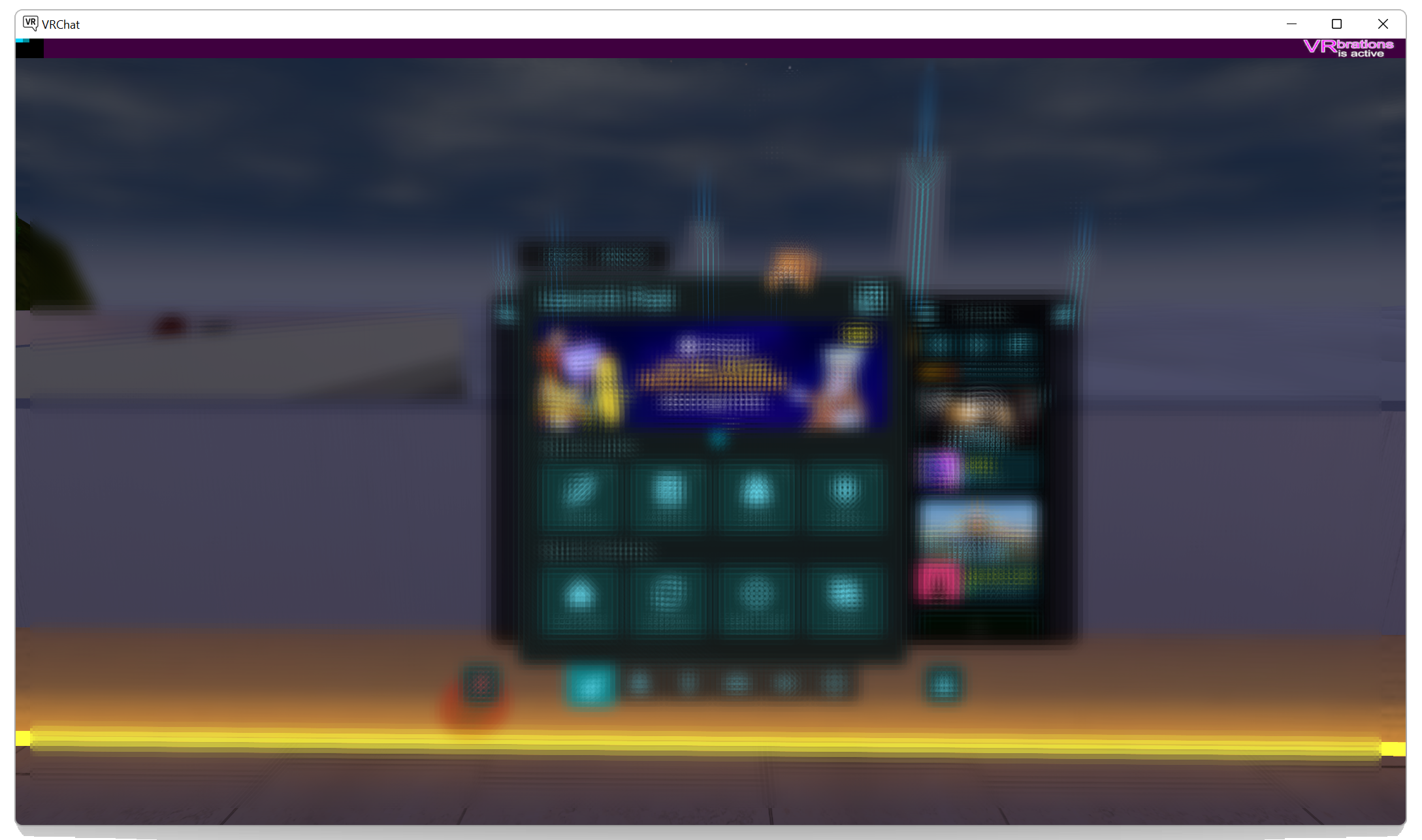
Make sure your VRChat window is the top layer application. It must not be obstructed by any other window like SteamVR. It must also not go out of the boundaries of your screen. In the desktop view the purple VRbrations bar must not be obstructed by any overlay (e.g. EmmVRC icon).
Example for VRB bar:
Step 4: (Optional) Configure VRB
You can now add extra behavior to VRbrations. A behavior in VRB is an input->output relation. E.g. Headpat sensor depth input -> Vibration motor 1.
If the world has any builtin sensors they will show up as options for behavior inputs.
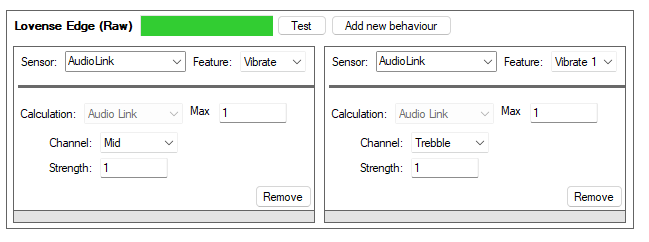
You can also have AudioLink be input for behaviors. So if you want to really "feel the bass" add AudioLink at this point.
Example for AudioLink configuration:
Step 5: Troubleshooting
If you have any problems with the setup join the discord. There is a common problems channel and if that doesn't help don't hesitate to ask.